
Upload Video
To upload a new video, follow these steps: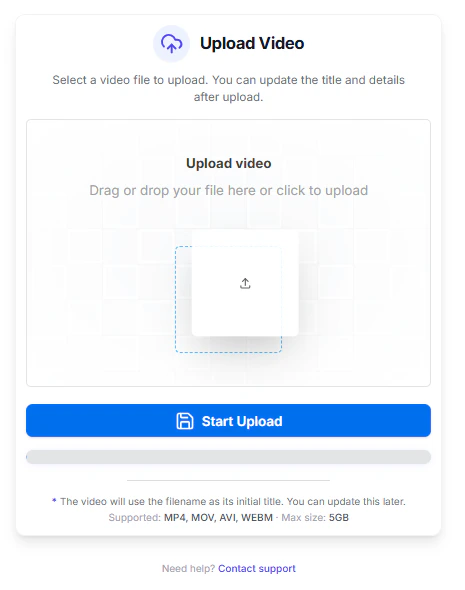
1
Open Upload Section
Navigate to the Videos dashboard and click the Upload Video button.
2
Select Video File
Choose a file from your device (MP4, MOV, AVI, or WEBM up to 5GB).
3
Track Upload Progress
Monitor the real-time upload progress with resumable support enabled.
4
Edit Video Details
After upload completes, update the title and description if needed.
5
Save Video
Click save to finalize and publish the uploaded video.
Captions
To manage captions for your video, follow these steps: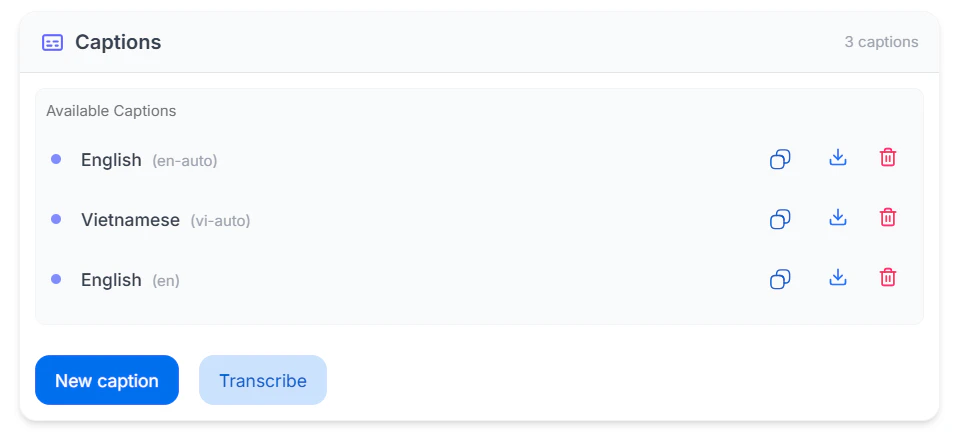
1
Open Captions Tab
Select your video and navigate to the Captions section.
2
Upload Caption File
Enter a label, provide the language code, and upload a .vtt file.
3
Generate Transcription
Choose a language and confirm to automatically generate captions.
4
Manage Existing Captions
Use action buttons to download, copy the link, or delete captions.
Chapters
To add and manage video chapters, follow these steps: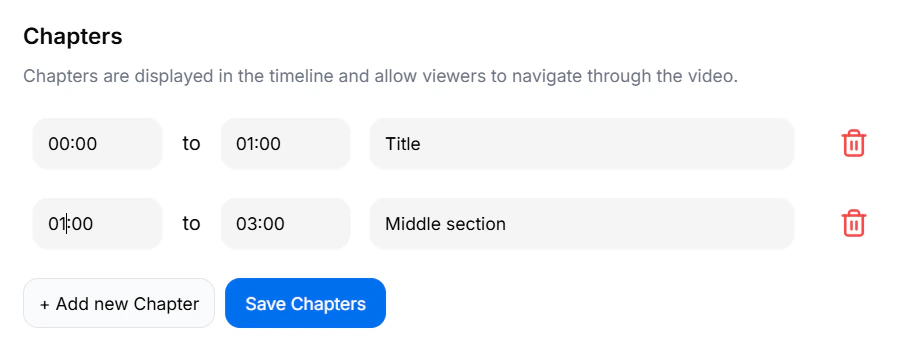
1
Open Chapters Tab
Navigate to the Chapters section of your selected video.
2
Add New Chapter
Click Add New Chapter and enter start and end time in MM:SS format.
3
Enter Chapter Title
Provide a title that describes the section of the video.
4
Edit or Delete Chapter
Modify time/title fields directly or click delete to remove a chapter.
5
Save Chapters
Click Save Chapters to store the changes.
Embed
To embed your video on an external website, follow these steps: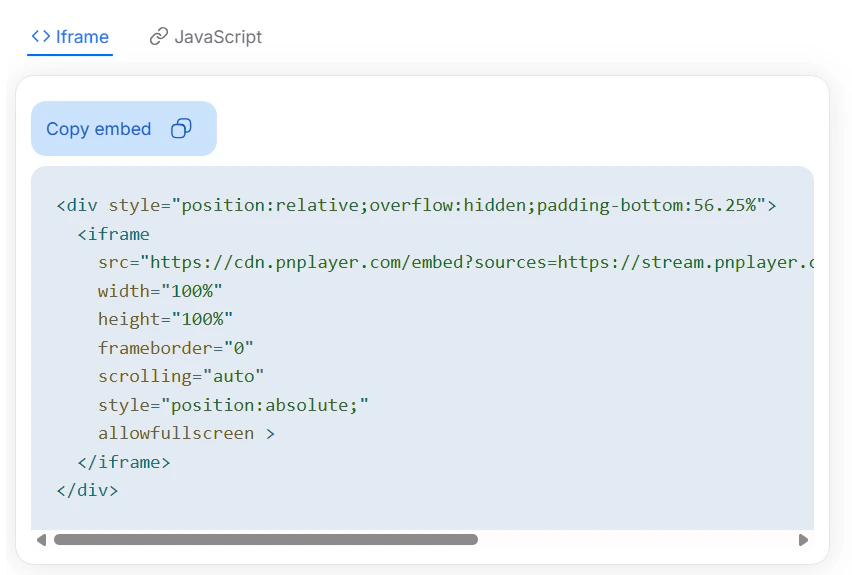
1
Open Embed Tab
Select the video and navigate to the Embed section.
2
Customize Embed Settings
Enable responsive layout and fullscreen options if required.
3
Copy Embed Code
Copy the generated iframe embed code.
4
Paste into Website
Paste the iframe code into your website’s HTML where you want the video to appear.
Analytics
To analyze video performance, follow these steps: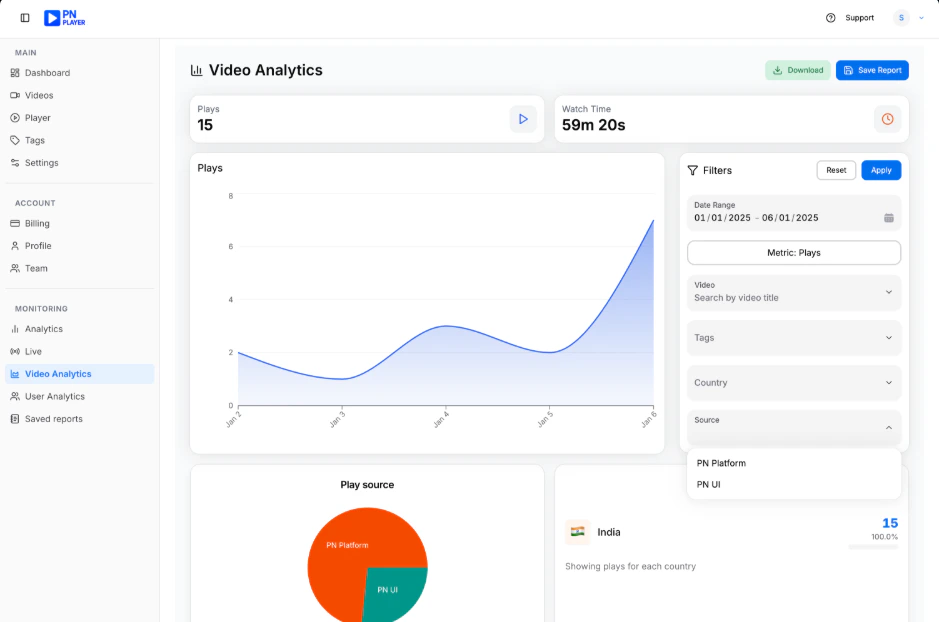
1
Open Analytics Tab
Navigate to the Analytics section of the selected video.
2
View Overview Metrics
Check total Plays and Watch Time displayed at the top.
3
Select Date Range
Choose start and end dates to filter analytics by timeframe.
4
Choose Metric Type
Select a metric from the dropdown to update dashboard data.
5
Apply Video or Tag Filters
Use video and tag filters to narrow down performance data.
6
Filter by Source or Country
Analyze engagement by traffic source or viewer country.
7
Review Charts
Study the trend graph and pie chart for performance insights.
8
Check Video Performance Table
Compare watch time and plays across videos.
9
Download Report
Export analytics data for reporting or sharing.
10
Reset Filters
Clear applied filters to return to the default analytics view.